
As agents start running on Windows, users need a way to see what they’re doing at a glance. At Ignite 2025, we showed how Windows is evolving to include agent-like functions built into the OS — including agent tasks on the taskbar. The Windows.UI.Shell.Tasks WinRT namespace is the API that makes it work: letting apps put structured task progress directly on the taskbar — no alt-tabbing required.
We designed this in close collaboration with our Shell team. If you’re building agents that run on Windows, this is the API you need to know.
The problem it solves
Apps can show detailed info about what’s happening — but that means the user has to be staring at the app. File copies get a whole dialog with a progress chart — hey, I built this with my team back in Windows 8! — with detailed progress, speed estimates, and time remaining (OK, that last one wasn’t always accurate); great, if you’re watching it. It was apparently good enough that someone built a lunar lander game on top of it.
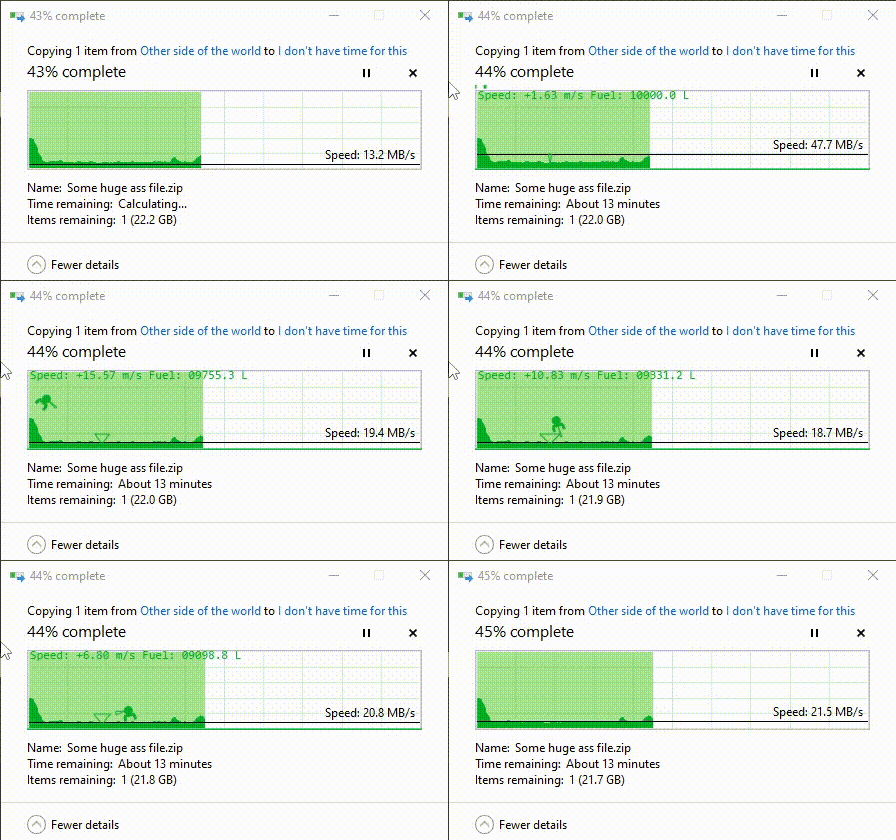
But everyone knows people don’t want to sit there staring at a dialog, which is why file copies also show a sweeping progress bar on the taskbar. Downloads do the same.
That taskbar progress bar is the universal “something is happening” signal. But that’s all it tells you. An agent researching a topic might spend minutes crawling sources, cross-referencing, drafting. A progress bar can’t tell you it just finished searching three databases and is now compiling a report. The user has no idea if it’s working, stuck, or waiting for input. They alt-tab. They check. They alt-tab back. Repeat.
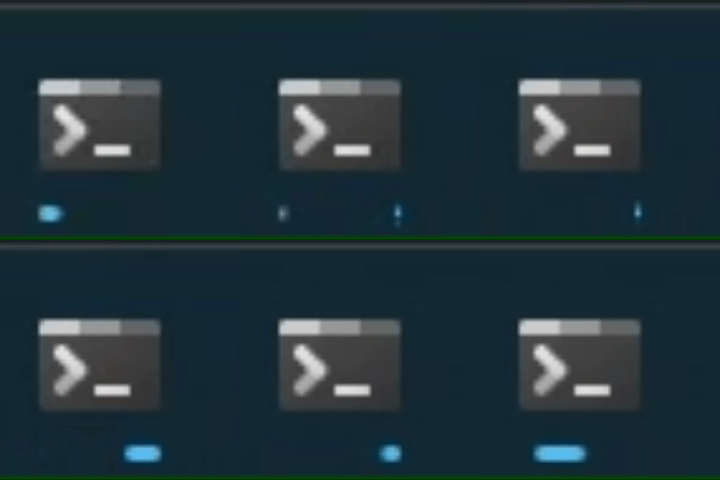 The taskbar progress bar: useful for downloads, not enough for agents.
The AppTasks API gives apps a way to push structured task status directly into the Windows Shell — steps, results, even interactive prompts. The taskbar becomes the progress surface. No custom UI required.
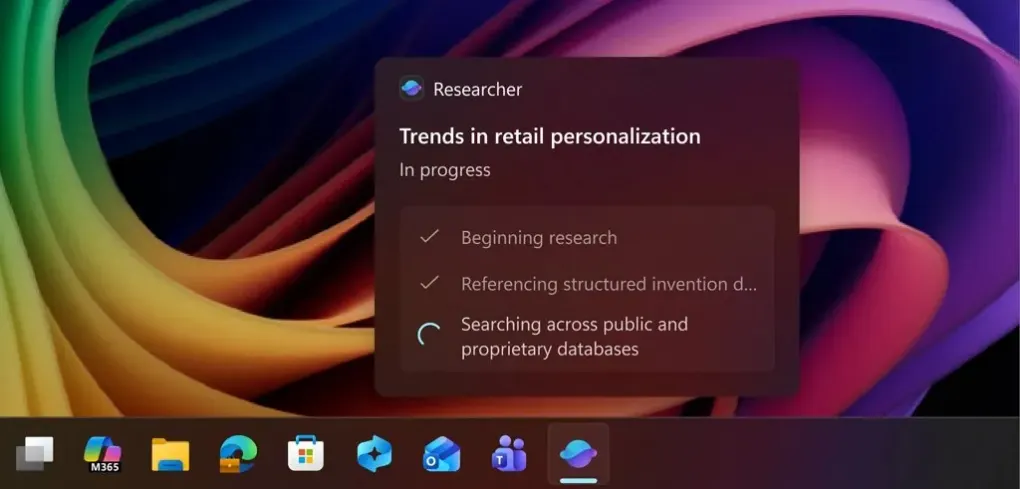 The Researcher agent in Microsoft 365 Copilot showing real-time progress steps on the taskbar — completed steps get checkmarks, the current step shows a spinner.
The API surface
The namespace has three classes and one enum. That’s it.
AppTaskInfo is the task itself. Create one with AppTaskInfo.Create(title, subtitle, deepLink, iconUri, content) — the task appears on the taskbar immediately. Tasks survive app restarts; the Shell owns the lifecycle. Use FindAll() to recover them on next launch, Update() to change state and content, Remove() when you’re done. The HiddenByUser property tells you if the user dismissed it.
AppTaskContent controls what the user sees. It has factory methods for different visual representations:
CreateSequenceOfSteps— step-by-step progress (the screenshot above). Takes an array of completed steps and the current step string.CreatePreviewThumbnail— a thumbnail preview of the outputCreateTextSummaryResult— a text summary when the task completesCreateGeneratedAssetsResult— display generated files/assets asAppTaskResultAssetobjects
You can also bolt on interactive elements: SetQuestion to ask the user something, AddButton for deep-link actions, SetTextInput for free-form input with a URI template ({userTextInput} placeholder). The Shell renders all of it.
AppTaskState is the enum: Running, Paused, Completed, Error, NeedsAttention. Straightforward.
AppTaskResultAsset represents a file or artifact the task produced.
Show me the code
Here’s a basic flow: create a task, update it as your agent progresses, mark it complete.
using Windows.UI.Shell.Tasks;

// Create the task content — a sequence of steps the agent will work through
var content = AppTaskContent.CreateSequenceOfSteps(
    new string[] { },  // no completed steps yet
    "Beginning research"  // current step
);

// Create the task — it appears on the taskbar immediately
var task = AppTaskInfo.Create(
    title: "Researching retail personalization trends",
    subtitle: "Copilot",
    deepLink: new Uri("myapp://tasks/research-123"),  // where to go when clicked
    iconUri: new Uri("ms-appx:///Assets/AgentIcon.png"),
    content: content);
As your agent progresses, update the content:
// Agent finished step 1, now on step 2
var updatedContent = AppTaskContent.CreateSequenceOfSteps(
    new[] { "Beginning research" },  // completed steps
    "Searching databases"  // current step
);
task.Update(AppTaskState.Running, updatedContent);
When the agent finishes, switch to a result view:
// Show generated assets when done
var assets = new AppTaskResultAsset[]
{
    new AppTaskResultAsset(
        "Research Report", "12 sources, 3 databases",
        new Uri("ms-appx:///Assets/DocIcon.png"),
        new Uri("myapp://reports/research-123"))
};
task.Update(AppTaskState.Completed,
    AppTaskContent.CreateGeneratedAssetsResult(assets));
If the agent needs user input mid-task:
// The content model supports interactive elements
var content = AppTaskContent.CreateSequenceOfSteps(
    new[] { "Beginning research" }, "Waiting for input");
content.SetQuestion("Should I include competitor analysis?");
content.AddButton("Yes, include it", new Uri("myapp://task/confirm"));
content.AddButton("No, skip it", new Uri("myapp://task/skip"));
content.SetTextInput("Or type specific instructions",
    "myapp://task/input?text={userTextInput}");
task.Update(AppTaskState.NeedsAttention, content);
Tasks survive app restarts — the Shell owns the lifecycle. On next launch, find and resume them:
var existingTasks = AppTaskInfo.FindAll();
foreach (var t in existingTasks)
{
    // Resume, update, or remove stale tasks
    // t.HiddenByUser tells you if the user dismissed it
}
When the task is no longer relevant:
task.Remove();
Requirements
Two things your app needs:
-
Package identity. Your app needs package identity so the Shell can associate tasks with it. This doesn’t mean you need a full MSIX package — you can use packaging with external location (sparse packaging) to add identity to your existing app without changing how you install or deploy it.
Alternative for unpackaged agents: If your agent can’t easily get package identity (e.g. a Python script, a CLI tool), you can build a small packaged helper app whose sole job is to call the AppTasks APIs on behalf of your agent. Your agent talks to the helper via IPC or command-line args; the helper handles the Shell integration.
-
AppExtension manifest entry. Declare
com.microsoft.apptaskproviderin your Package.appxmanifest:
<Extensions>
  <uap3:Extension Category="windows.appExtension">
    <uap3:AppExtension
      Name="com.microsoft.apptaskprovider"
      PublicFolder="Public"
      Id="MyApp.AppTaskProvider"
      DisplayName="AppTaskProvider for MyApp"/>
  </uap3:Extension>
</Extensions>
That’s how Windows knows your app provides this kind of status.
Why this matters for agent developers
The API is marked [Experimental] and started rolling out to Windows 11 in May 2026. It’s early. But the design pattern here is the one that will stick.
Background agents need a presence in the OS. Not a notification that fires and disappears. Not a toast that gets swiped away. A persistent, glanceable status that the user can check without context-switching.
We’ve had this pattern for decades with download managers and file transfers. Agents are long-running background work. The taskbar is where users already look for that.
The content model is flexible enough to handle the range of agent behaviors: step-by-step progress for research tasks, thumbnails for image generation, asset lists for multi-file output, and interactive elements when the agent needs human input. That last one is probably the most interesting — agents that can ask questions through the Shell UI don’t need to yank you out of whatever you’re doing just to answer “yes” or “no.”
What’s next
If you’re building agents on Windows, start with the API docs. The surface area is small enough to learn in an afternoon, and you get your agent’s status right there on the taskbar instead of making users babysit it.
The broader story — how Windows is becoming a platform where agents are native citizens of the OS — is still unfolding. AppTasks is one piece of that. More to come.
Connect with me on LinkedIn to discuss platform architecture for AI agents: linkedin.com/in/asklar